

 Authenticate
 Manage Users
 Customize
 Platform
- MongoDB
- MySQL
- PostgreSQL
- Microsoft SQL Server
- ASP.NET Identity
- Web services accessed with Basic Auth
Instructions
Prerequisites
- Your external user store must be reachable from Auth0’s servers. If it is behind a firewall, allow inbound traffic from Auth0’s outbound IP addresses.
-
Your external user store must have the appropriate fields to store normalized user profile attributes, such as
id,nickname,email, andpassword. -
The
id(oruser_id) value returned from your database action scripts must be unique across all custom database connections because Auth0 uses this value to identify users. To avoid user ID collisions when using multiple custom database connections, we recommend prefixingidvalues with the connection name (omitting whitespace).
Create the custom database connection
From Auth0 Dashboard > Authentication > Database, select + Create DB Connection. On the New Database Connection page, enter the following configuration.
-
Enter a name, which must:
- Contain only alphanumeric characters and dashes.
- Start and end with an alphanumeric character
- Not exceed 35 characters.
- Choose one or more attributes as user identifiers.
- Choose one or more authentication methods (like passwords or passkeys).
- Enable the Use my own database toggle.
Write database action scripts
Once you create your custom database connection, you need to write database action scripts to define how Auth0 interfaces with your external user store for functionality like login, sign up, email verification, password resets, and user deletion.At minimum, you must implement a Login script:
- From the database connection’s page, select the Custom Database tab.
- In the Database Action Scripts section, select Login.
-
Write your own database action script with the provided function signature, or use the Load Template drop-down menu to select a template to start from.
MySQL Login action script example
For example, the MySQL Login action script template looks like this:This example assumes the database contains aLogin database action script template for MySQLuserstable containing the appropriate columns. The script connects to the database, uses a query to retrieve the first user withemail == user.email, validates the entered passwords withbcrypt.compareSyncand, if successful, returns an object containing the user profile information (includingid,nickname, andemail).
callback function exactly once, immediately before it completes (either implicitly or explicitly with a return statement).Add configuration parameters (optional)
In the Configuration Parameters section (below Database Action Scripts), you can store values that are available to all database action scripts in the global Treat the
configuration object.Values are encrypted, so you can also use configuration parameters to store sensitive information such as credentials or API keys for accessing external identity stores or define variables with tenant-specific values.To extend the previous MySQL example, if you add the Key MYSQL_PASSWORD with the Value as the MySQL password, you can use that configuration parameter to connect:MySQL connection configuration parameter example
configuration object as read-only and use it to avoid hard-coding values in your action scripts.Test and save the database action script
- To test your database action script, select Save and Try above the code block.
-
In the Try the login script window that opens, enter the user credentials you want to use to test.
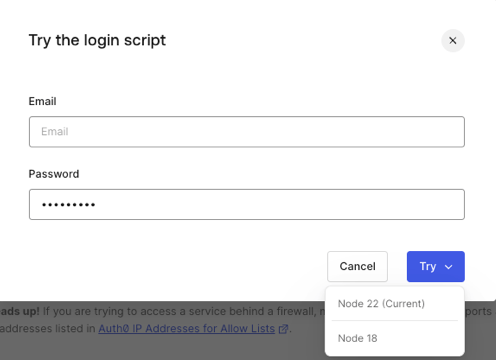
- Select Try to open the runtime selector. Choose your runtime to execute the script.
Next steps
Enable automatic migration
You can continue using your external user store as your IdP. If you want to transition to Auth0’s user store instead, you can incrementally migrate users to Auth0 (sometimes called trickle or lazy migration).Enable Organization context
If you use custom database connections with Organizations, you can make Organization details likeid, name, and metadata available to your database action scripts by enabling the context object
Doing so passes an additional context argument to custom database scripts containing Organization data. For example, when a user authenticates on an Organization’s login prompt, the login database action script is passed.
First, enable the context object:
- From to Auth0 Dashboard > Authentication > Database, select your database connection.
- Select the Custom Database tab.
- Next to Context object in database scripts, select Enable.
- In the Are you absolutely sure? window that opens, select Confirm.
context object to your database action scripts. This parameter directly precedes the callback parameter. For example, in the Login script function signature:
Original Login script function signature
Login script function signature with the context object
context object contains Organization data in the following format:
context object.
Limits and considerations
- Auth0 does not sanitize or validate any username/password combination passed by a custom database.
- Database action scripts are subject to Auth0’s Rate Limit Policy.