> ## Documentation Index
> Fetch the complete documentation index at: https://docs-dev-docs-ia-custom-database-connections.mintlify.site/llms.txt
> Use this file to discover all available pages before exploring further.
> Enable and configure Customer Managed Keys (BYOK) for your Auth0 tenant using the Auth0 Dashboard.
# Configure Customer Managed Keys with the Dashboard
Auth0 secures your tenant secrets and data using an Auth0 Environment Root Key, at the top of the envelope encryption key hierarchy. The Auth0 Environment Root Key and Customer Provided Root Key are stored in the hardware security module (HSM) of the corresponding Auth0 Cloud Service Provider, AWS or Azure.
## Bring Your Own Key
Using Bring Your Own Key, users with the [Key Management Editor role](/docs/get-started/manage-dashboard-access/add-dashboard-users) can use the Auth0 Dashboard to replace the default Auth0 Environment Root Key with their own Customer provided Root Key.
Customers can securely upload their own Root Key which contains their own cryptographic material to:
* Meet custom key generation and provenance requirements for the Environment Root Key.
* Meet specific key installation or lifespan requirements for the Environment Root Key.
By importing your own Customer Provided Root Key with Bring Your Own Key, you are implicitly deauthorizing Auth0 from managing the lifecycle of the Customer Provided Root Key, except for its deletion.
To begin, go to Dashboard > Settings > Encryptions keys
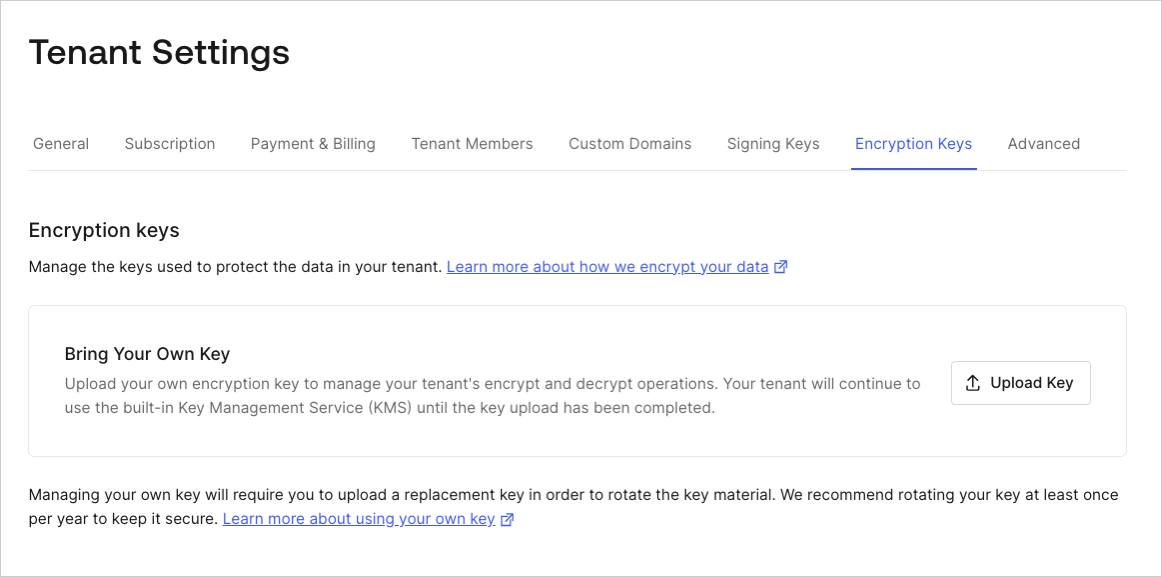 Select **Upload Key** to begin the import process for your Customer Provided Root Key. This will open the import dialog:
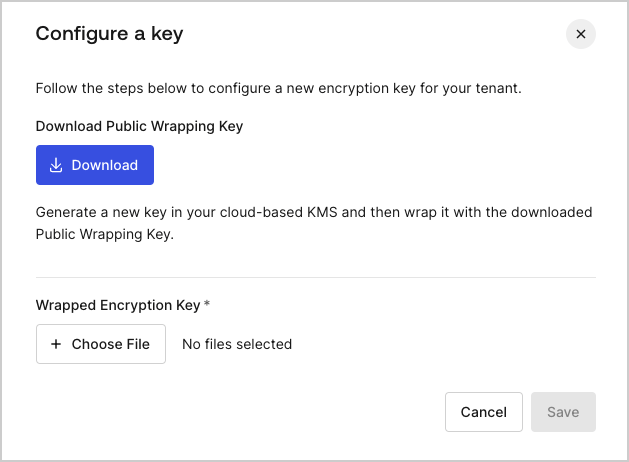 When you select **Upload Key** and then **Download,** it initiates the Bring Your Own Keys process:
1. Creates a public wrapping key and downloads it to your system.
2. Take the public wrapping key and wrap your own cryptographic material with it using your own key management system to create a Wrapped Encryption Key (the Customer Provided Root Key).
3. Upload your Wrapped Encryption Key and select **Save**.
The Wrapped Encryption Key once uploaded replaces the Auth0 Environment Root Key in the hardware security module (AWS or Azure) as a Customer Provided Root key.
## Cryptographic material requirements
Use your key management system to wrap your own cryptographic material with the public wrapping key and create the Wrapped Encryption Key. Use these settings for the [CKM\_RSA\_AES\_KEY\_WRAP](https://docs.oasis-open.org/pkcs11/pkcs11-curr/v2.40/cos01/pkcs11-curr-v2.40-cos01.html#_Toc408226894) algorithm parameters based on your Auth0 Cloud Service Provider (AWS or Azure):
### Auth0 on AWS cloud
* Public wrapping key length: 3072 bits
* Algorithm: CKG\_MGF1\_SHA256
* Temporary AES key length for CKM\_AES\_KEY\_WRAP\_PAD: 256 bits
* Customer provided root key type: 256 bits long AES symmetric key
### Auth0 on Azure cloud
* Public wrapping key length: 2048 bits
* Algorithm: CKG\_MGF1\_SHA-1
* Temporary AES key length for CKM\_AES\_KEY\_WRAP\_PAD: 256 bits
* Customer Provided Root Key type: 2048 bits long RSA private key
* Private key encoding: PKCS #8 - ASN.1 DER
When you select **Upload Key** and then **Download,** it initiates the Bring Your Own Keys process:
1. Creates a public wrapping key and downloads it to your system.
2. Take the public wrapping key and wrap your own cryptographic material with it using your own key management system to create a Wrapped Encryption Key (the Customer Provided Root Key).
3. Upload your Wrapped Encryption Key and select **Save**.
The Wrapped Encryption Key once uploaded replaces the Auth0 Environment Root Key in the hardware security module (AWS or Azure) as a Customer Provided Root key.
## Cryptographic material requirements
Use your key management system to wrap your own cryptographic material with the public wrapping key and create the Wrapped Encryption Key. Use these settings for the [CKM\_RSA\_AES\_KEY\_WRAP](https://docs.oasis-open.org/pkcs11/pkcs11-curr/v2.40/cos01/pkcs11-curr-v2.40-cos01.html#_Toc408226894) algorithm parameters based on your Auth0 Cloud Service Provider (AWS or Azure):
### Auth0 on AWS cloud
* Public wrapping key length: 3072 bits
* Algorithm: CKG\_MGF1\_SHA256
* Temporary AES key length for CKM\_AES\_KEY\_WRAP\_PAD: 256 bits
* Customer provided root key type: 256 bits long AES symmetric key
### Auth0 on Azure cloud
* Public wrapping key length: 2048 bits
* Algorithm: CKG\_MGF1\_SHA-1
* Temporary AES key length for CKM\_AES\_KEY\_WRAP\_PAD: 256 bits
* Customer Provided Root Key type: 2048 bits long RSA private key
* Private key encoding: PKCS #8 - ASN.1 DER