> ## Documentation Index
> Fetch the complete documentation index at: https://docs-dev-docs-ia-custom-database-connections.mintlify.site/llms.txt
> Use this file to discover all available pages before exploring further.

# Vault

> ActionsでVaultのフォームを使用する方法について説明します。

Vaultでは、シークレットや共通の設定（例：APIキー、アクセストークン、リフレッシュトークンなど）を安全に保存し、Vault接続として外部サービスや統合を使用した要求を認証できます。

<Callout icon="file-lines" color="#0EA5E9" iconType="regular">
  * 接続の中には、ユーザーに対して資格情報の提供を求めるものがあります（たとえば、Auth0でマシンツーマシン（M2M）アプリケーションを使う場合は、使用期限とリフレッシュトークンのあるアクセストークンを生成します）。接続は、両方のトークンを保管し、期限が切れる前に新しいアクセストークンを生成します。
  * 外部サービスによっては、API資格情報の生成にスコープの認可が必要です。スコープを変更した場合は、接続で問題が発生しないように、それらのサービスへの接続を更新してください。
  * 追加した接続は、すぐにフローで使用できます。既存の接続に対する更新は、自動的に反映されます。
</Callout>

## Vault接続を作成および変更する

アクションに資格情報が必要な場合、VaultページまたはフローエディターからVaultへの接続を作成・変更します。

### VaultページからVault接続を作成する

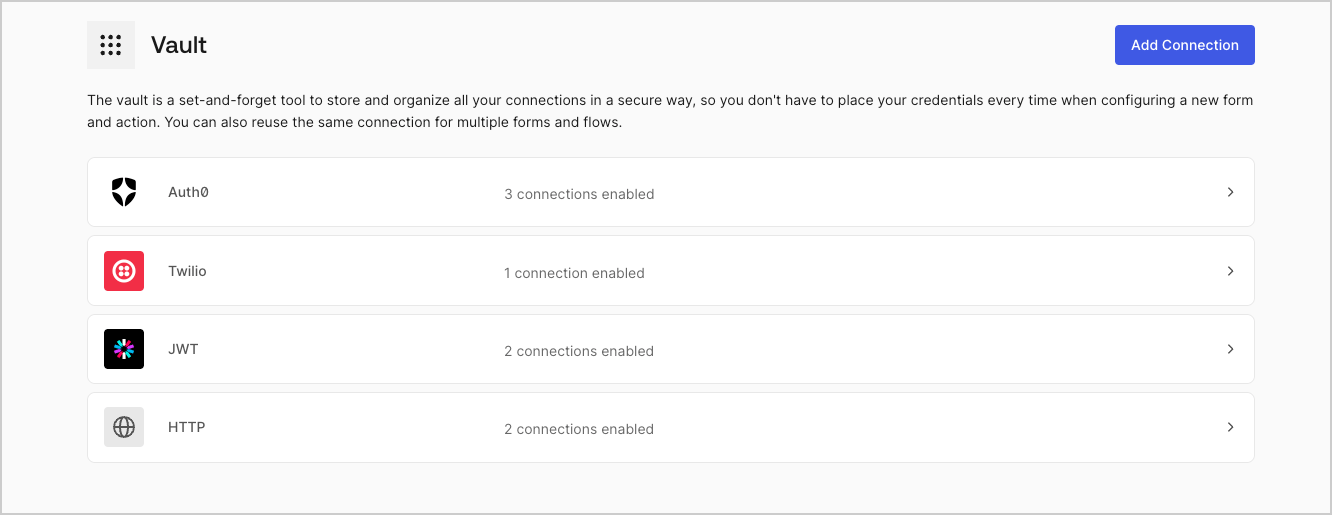
以下の手順に従って、VaultページからVault接続を追加します。

1. **［Auth0 Dashboard］>［Actions（アクション）］>［Forms（フォーム）］** の順に選択して、フォームエディターを開きます。

2. 左上隅の **{tenantName} >* \*\*\* ［Vault］*\* をクリックして、Vaultページを開きます。

   <Frame>
     <img src="https://mintcdn.com/docs-dev-docs-ia-custom-database-connections/yd9Ux8SFnRwydKMB/docs/images/ja-jp/cdy7uua7fh8z/1sPNPKO6nuEDCuiYGRWSur/d85dc616170eaf2d7d5f321750863ccf/vault-connections-example.png?fit=max&auto=format&n=yd9Ux8SFnRwydKMB&q=85&s=86d2eb054383ef28cacd3598a4208101" alt="Dashboard > Forms > Vault" data-og-width="1332" width="1332" data-og-height="515" height="515" data-path="docs/images/ja-jp/cdy7uua7fh8z/1sPNPKO6nuEDCuiYGRWSur/d85dc616170eaf2d7d5f321750863ccf/vault-connections-example.png" data-optimize="true" data-opv="3" srcset="https://mintcdn.com/docs-dev-docs-ia-custom-database-connections/yd9Ux8SFnRwydKMB/docs/images/ja-jp/cdy7uua7fh8z/1sPNPKO6nuEDCuiYGRWSur/d85dc616170eaf2d7d5f321750863ccf/vault-connections-example.png?w=280&fit=max&auto=format&n=yd9Ux8SFnRwydKMB&q=85&s=197012d5f320bf8d9a4c6205d13b253e 280w, https://mintcdn.com/docs-dev-docs-ia-custom-database-connections/yd9Ux8SFnRwydKMB/docs/images/ja-jp/cdy7uua7fh8z/1sPNPKO6nuEDCuiYGRWSur/d85dc616170eaf2d7d5f321750863ccf/vault-connections-example.png?w=560&fit=max&auto=format&n=yd9Ux8SFnRwydKMB&q=85&s=4e6943cfda9ddecf32c62c7390902c7b 560w, https://mintcdn.com/docs-dev-docs-ia-custom-database-connections/yd9Ux8SFnRwydKMB/docs/images/ja-jp/cdy7uua7fh8z/1sPNPKO6nuEDCuiYGRWSur/d85dc616170eaf2d7d5f321750863ccf/vault-connections-example.png?w=840&fit=max&auto=format&n=yd9Ux8SFnRwydKMB&q=85&s=02ed5dc10fd20cbaed368ed1392ccbe0 840w, https://mintcdn.com/docs-dev-docs-ia-custom-database-connections/yd9Ux8SFnRwydKMB/docs/images/ja-jp/cdy7uua7fh8z/1sPNPKO6nuEDCuiYGRWSur/d85dc616170eaf2d7d5f321750863ccf/vault-connections-example.png?w=1100&fit=max&auto=format&n=yd9Ux8SFnRwydKMB&q=85&s=0ca56c1b2ca19a8e1fbd1179072ad5af 1100w, https://mintcdn.com/docs-dev-docs-ia-custom-database-connections/yd9Ux8SFnRwydKMB/docs/images/ja-jp/cdy7uua7fh8z/1sPNPKO6nuEDCuiYGRWSur/d85dc616170eaf2d7d5f321750863ccf/vault-connections-example.png?w=1650&fit=max&auto=format&n=yd9Ux8SFnRwydKMB&q=85&s=e7ba46ebf1a7bdc2710b5aefaed4d9d5 1650w, https://mintcdn.com/docs-dev-docs-ia-custom-database-connections/yd9Ux8SFnRwydKMB/docs/images/ja-jp/cdy7uua7fh8z/1sPNPKO6nuEDCuiYGRWSur/d85dc616170eaf2d7d5f321750863ccf/vault-connections-example.png?w=2500&fit=max&auto=format&n=yd9Ux8SFnRwydKMB&q=85&s=1655a07dd37ca4cc686c93ff28495ce9 2500w" />
   </Frame>

3. **［Add Vault Connection（Vault接続を追加）］** を選択します。

4. 必要なアクションを選択し、 **［Continue（続行）］** をクリックします。

5. Vaultの **［Connection name（接続名）］** を追加し、 **［Continue（続行）］** を選択します。

6. 資格情報を入力します。特定の資格情報がない場合は、 **［Create an empty connection（空の接続を作成）］** を選択し、後で資格情報を追加することもできます。空の接続には、資格情報が不足していることを示すオレンジ色のアイコンが表示されます。
7. **［Add Vault Connection（Vault接続を追加）］** を選択します。

### フローエディターからVault接続を作成する

フローアクションから、たとえばTwilioのようなVault接続を追加するには、以下の手順を実行します。

1. **［Auth0 Dashboard］>［Actions（アクション）］>［Forms（フォーム）］>［Flows（フロー）］** の順に選択して、フローエディターを開きます。

2. フローを選択し、 **［Send SMS with Twillo（TwilloでSMSを送信］** アクションを追加します。

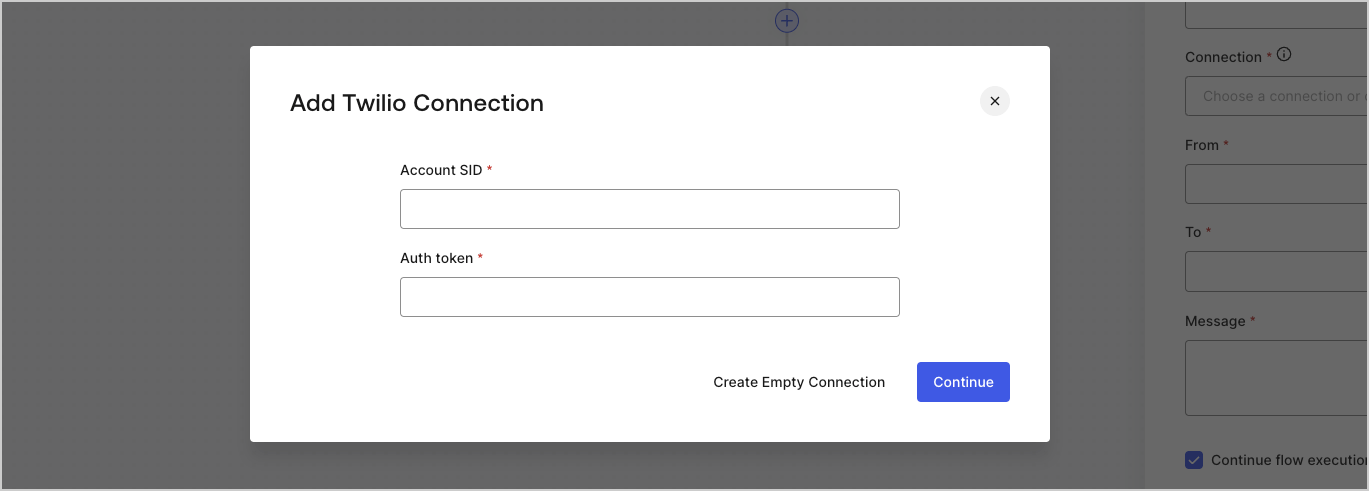
3. アクションの **［Vault connection（Vault接続）］** 設定で、 **+** アイコンを選択します。

   <Frame>
     <img src="https://mintcdn.com/docs-dev-docs-ia-custom-database-connections/9LsP4aA6Jw27uQQP/docs/images/ja-jp/cdy7uua7fh8z/1AsaznhRKxm5LZxPlcbfUw/10e5a8af700aab909f5b03fcd266da7e/twilio-vault-connection.png?fit=max&auto=format&n=9LsP4aA6Jw27uQQP&q=85&s=d9afbf5afacfd4c291040a863190dd65" alt="Dashboard > Forms > Vault " data-og-width="1104" width="1104" data-og-height="191" height="191" data-path="docs/images/ja-jp/cdy7uua7fh8z/1AsaznhRKxm5LZxPlcbfUw/10e5a8af700aab909f5b03fcd266da7e/twilio-vault-connection.png" data-optimize="true" data-opv="3" srcset="https://mintcdn.com/docs-dev-docs-ia-custom-database-connections/9LsP4aA6Jw27uQQP/docs/images/ja-jp/cdy7uua7fh8z/1AsaznhRKxm5LZxPlcbfUw/10e5a8af700aab909f5b03fcd266da7e/twilio-vault-connection.png?w=280&fit=max&auto=format&n=9LsP4aA6Jw27uQQP&q=85&s=a67a8b3c885eeae30d588bc155e2a522 280w, https://mintcdn.com/docs-dev-docs-ia-custom-database-connections/9LsP4aA6Jw27uQQP/docs/images/ja-jp/cdy7uua7fh8z/1AsaznhRKxm5LZxPlcbfUw/10e5a8af700aab909f5b03fcd266da7e/twilio-vault-connection.png?w=560&fit=max&auto=format&n=9LsP4aA6Jw27uQQP&q=85&s=eefb67735d38fb507c1657142b3a75bf 560w, https://mintcdn.com/docs-dev-docs-ia-custom-database-connections/9LsP4aA6Jw27uQQP/docs/images/ja-jp/cdy7uua7fh8z/1AsaznhRKxm5LZxPlcbfUw/10e5a8af700aab909f5b03fcd266da7e/twilio-vault-connection.png?w=840&fit=max&auto=format&n=9LsP4aA6Jw27uQQP&q=85&s=666dbb8b39139f4d2fdd776a2132820e 840w, https://mintcdn.com/docs-dev-docs-ia-custom-database-connections/9LsP4aA6Jw27uQQP/docs/images/ja-jp/cdy7uua7fh8z/1AsaznhRKxm5LZxPlcbfUw/10e5a8af700aab909f5b03fcd266da7e/twilio-vault-connection.png?w=1100&fit=max&auto=format&n=9LsP4aA6Jw27uQQP&q=85&s=fbdbb6d0a626122693b012eca9ef266d 1100w, https://mintcdn.com/docs-dev-docs-ia-custom-database-connections/9LsP4aA6Jw27uQQP/docs/images/ja-jp/cdy7uua7fh8z/1AsaznhRKxm5LZxPlcbfUw/10e5a8af700aab909f5b03fcd266da7e/twilio-vault-connection.png?w=1650&fit=max&auto=format&n=9LsP4aA6Jw27uQQP&q=85&s=1247297993b4b4e71132c7bc9f870bdd 1650w, https://mintcdn.com/docs-dev-docs-ia-custom-database-connections/9LsP4aA6Jw27uQQP/docs/images/ja-jp/cdy7uua7fh8z/1AsaznhRKxm5LZxPlcbfUw/10e5a8af700aab909f5b03fcd266da7e/twilio-vault-connection.png?w=2500&fit=max&auto=format&n=9LsP4aA6Jw27uQQP&q=85&s=70e22ef2b500c10026ff517dce6b4542 2500w" />
   </Frame>

4. Vaultの **［Connection name（接続名）］** を追加し、 **［Continue（続行）］** を選択します。

5. 資格情報を入力します。特定の資格情報がない場合は、 **［Create an empty connection（空の接続を作成）］** を選択し、後で資格情報を追加することもできます。空の接続には、資格情報が不足していることを示すオレンジ色のアイコンが表示されます。

   <Frame>
     <img src="https://mintcdn.com/docs-dev-docs-ia-custom-database-connections/wfM-d8DvZMwEGLOq/docs/images/ja-jp/cdy7uua7fh8z/yobXanutPRCO3FWek8cOk/bc29e39fb8593cff35e2738234bfe6fe/twilio-vault-settings.png?fit=max&auto=format&n=wfM-d8DvZMwEGLOq&q=85&s=8394f92107d8fab4946efac5e8cbc1f6" alt="Dashboard > Forms > Vault > Twilio connection settings" data-og-width="1369" width="1369" data-og-height="491" height="491" data-path="docs/images/ja-jp/cdy7uua7fh8z/yobXanutPRCO3FWek8cOk/bc29e39fb8593cff35e2738234bfe6fe/twilio-vault-settings.png" data-optimize="true" data-opv="3" srcset="https://mintcdn.com/docs-dev-docs-ia-custom-database-connections/wfM-d8DvZMwEGLOq/docs/images/ja-jp/cdy7uua7fh8z/yobXanutPRCO3FWek8cOk/bc29e39fb8593cff35e2738234bfe6fe/twilio-vault-settings.png?w=280&fit=max&auto=format&n=wfM-d8DvZMwEGLOq&q=85&s=13a9037548e25c05dc371a3ef2e9cbaa 280w, https://mintcdn.com/docs-dev-docs-ia-custom-database-connections/wfM-d8DvZMwEGLOq/docs/images/ja-jp/cdy7uua7fh8z/yobXanutPRCO3FWek8cOk/bc29e39fb8593cff35e2738234bfe6fe/twilio-vault-settings.png?w=560&fit=max&auto=format&n=wfM-d8DvZMwEGLOq&q=85&s=993c9849143daddf702c16df5fda73bc 560w, https://mintcdn.com/docs-dev-docs-ia-custom-database-connections/wfM-d8DvZMwEGLOq/docs/images/ja-jp/cdy7uua7fh8z/yobXanutPRCO3FWek8cOk/bc29e39fb8593cff35e2738234bfe6fe/twilio-vault-settings.png?w=840&fit=max&auto=format&n=wfM-d8DvZMwEGLOq&q=85&s=abdb688d6b5e847d235cf5bacba8e126 840w, https://mintcdn.com/docs-dev-docs-ia-custom-database-connections/wfM-d8DvZMwEGLOq/docs/images/ja-jp/cdy7uua7fh8z/yobXanutPRCO3FWek8cOk/bc29e39fb8593cff35e2738234bfe6fe/twilio-vault-settings.png?w=1100&fit=max&auto=format&n=wfM-d8DvZMwEGLOq&q=85&s=27bb90d9990ef7b919c8bbf87c495e28 1100w, https://mintcdn.com/docs-dev-docs-ia-custom-database-connections/wfM-d8DvZMwEGLOq/docs/images/ja-jp/cdy7uua7fh8z/yobXanutPRCO3FWek8cOk/bc29e39fb8593cff35e2738234bfe6fe/twilio-vault-settings.png?w=1650&fit=max&auto=format&n=wfM-d8DvZMwEGLOq&q=85&s=f985baa7f10725390600ddd8ce90e194 1650w, https://mintcdn.com/docs-dev-docs-ia-custom-database-connections/wfM-d8DvZMwEGLOq/docs/images/ja-jp/cdy7uua7fh8z/yobXanutPRCO3FWek8cOk/bc29e39fb8593cff35e2738234bfe6fe/twilio-vault-settings.png?w=2500&fit=max&auto=format&n=wfM-d8DvZMwEGLOq&q=85&s=d4fea11f0c09c7f42e1ca9e6ef6dfaf8 2500w" />
   </Frame>

6. **［Add Vault Connection（Vault接続を追加）］** を選択します。