> ## Documentation Index
> Fetch the complete documentation index at: https://docs-dev-docs-ia-custom-database-connections.mintlify.site/llms.txt
> Use this file to discover all available pages before exploring further.

> Learn how to configure a progressive profile form using Forms for Actions

# Use Cases: Configure a progressive profile form using Forms

<Card title="Before you start">
  1. Create a [Machine-to-Machine Application](/docs/get-started/auth0-overview/create-applications/machine-to-machine-apps) with the following scopes enabled:

  * `read:users`
  * `update:users`
  * `create:users`
  * `read:users_app_metadata`
  * `update:users_app_metadata`
  * `create:users_app_metadata`

  2. Add a [Vault connection](/docs/customize/forms/vault) using the M2M application credentials.
</Card>

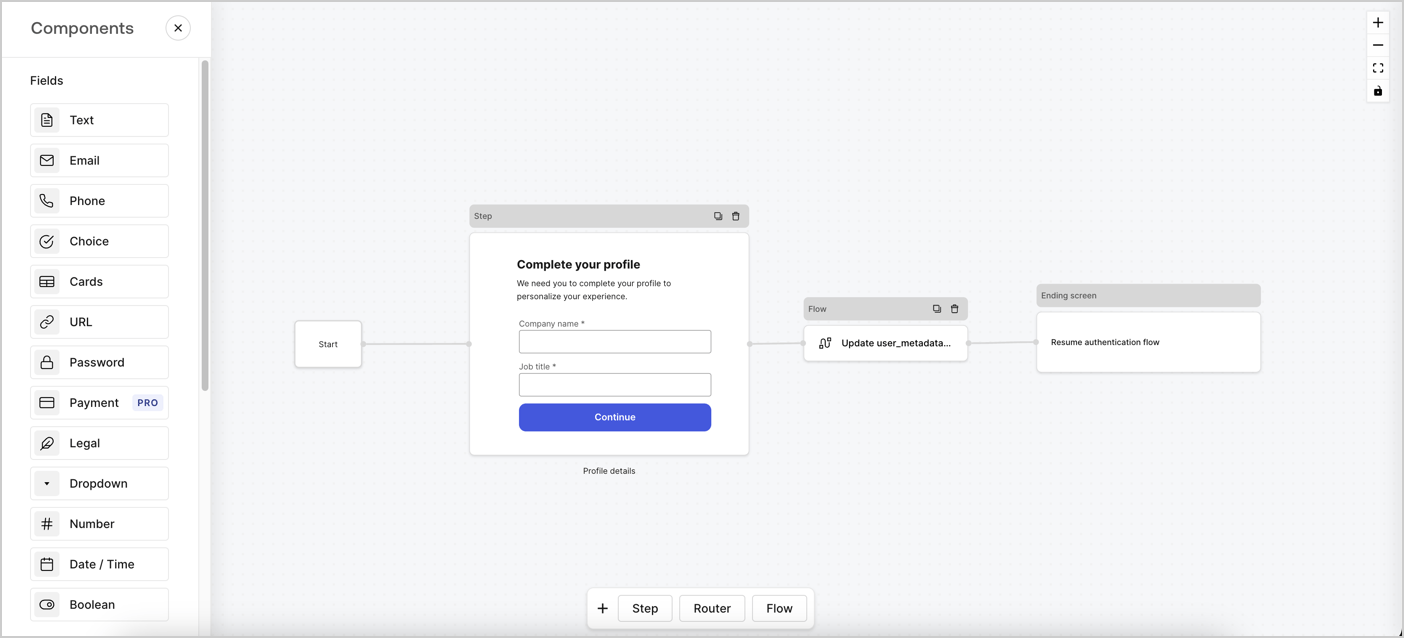
Forms for Actions allows you to create progressive profiling flows to decide when to prompt users to collect missing information, such as company name and job title, and store them as `user_metadata` attributes.
<Frame>
  <img src="https://mintcdn.com/docs-dev-docs-ia-custom-database-connections/DhDkjRIyZAiI9Zvx/docs/images/cdy7uua7fh8z/xUx9YmnHvnAqL19JvNtNP/60dae88f893d4ebe8e3523421e960596/Progressive-profle-overview.png?fit=max&auto=format&n=DhDkjRIyZAiI9Zvx&q=85&s=57749cf25b2ddea271147a8285c65fcf" alt="Dashboard > Actions > Forms > Form" data-og-width="1404" width="1404" data-og-height="638" height="638" data-path="docs/images/cdy7uua7fh8z/xUx9YmnHvnAqL19JvNtNP/60dae88f893d4ebe8e3523421e960596/Progressive-profle-overview.png" data-optimize="true" data-opv="3" srcset="https://mintcdn.com/docs-dev-docs-ia-custom-database-connections/DhDkjRIyZAiI9Zvx/docs/images/cdy7uua7fh8z/xUx9YmnHvnAqL19JvNtNP/60dae88f893d4ebe8e3523421e960596/Progressive-profle-overview.png?w=280&fit=max&auto=format&n=DhDkjRIyZAiI9Zvx&q=85&s=b661d5009d954fd6314f21f391be4be9 280w, https://mintcdn.com/docs-dev-docs-ia-custom-database-connections/DhDkjRIyZAiI9Zvx/docs/images/cdy7uua7fh8z/xUx9YmnHvnAqL19JvNtNP/60dae88f893d4ebe8e3523421e960596/Progressive-profle-overview.png?w=560&fit=max&auto=format&n=DhDkjRIyZAiI9Zvx&q=85&s=9cdca525968c45938270b74b2ede2913 560w, https://mintcdn.com/docs-dev-docs-ia-custom-database-connections/DhDkjRIyZAiI9Zvx/docs/images/cdy7uua7fh8z/xUx9YmnHvnAqL19JvNtNP/60dae88f893d4ebe8e3523421e960596/Progressive-profle-overview.png?w=840&fit=max&auto=format&n=DhDkjRIyZAiI9Zvx&q=85&s=e4ccc81cda4411a0c0680959cf60dcd2 840w, https://mintcdn.com/docs-dev-docs-ia-custom-database-connections/DhDkjRIyZAiI9Zvx/docs/images/cdy7uua7fh8z/xUx9YmnHvnAqL19JvNtNP/60dae88f893d4ebe8e3523421e960596/Progressive-profle-overview.png?w=1100&fit=max&auto=format&n=DhDkjRIyZAiI9Zvx&q=85&s=bf209a2c5b79a7c2dafc7041ae557e49 1100w, https://mintcdn.com/docs-dev-docs-ia-custom-database-connections/DhDkjRIyZAiI9Zvx/docs/images/cdy7uua7fh8z/xUx9YmnHvnAqL19JvNtNP/60dae88f893d4ebe8e3523421e960596/Progressive-profle-overview.png?w=1650&fit=max&auto=format&n=DhDkjRIyZAiI9Zvx&q=85&s=a03719e7007e19053d2968fa9376c120 1650w, https://mintcdn.com/docs-dev-docs-ia-custom-database-connections/DhDkjRIyZAiI9Zvx/docs/images/cdy7uua7fh8z/xUx9YmnHvnAqL19JvNtNP/60dae88f893d4ebe8e3523421e960596/Progressive-profle-overview.png?w=2500&fit=max&auto=format&n=DhDkjRIyZAiI9Zvx&q=85&s=fd39bb8104a2afd18abce6b15cfee8e7 2500w" />
</Frame>

The sections below outline how you can create a progressive profile form using nodes and flows, along with steps for adding your form to a [Post Login Action](/docs/customize/actions/explore-triggers/signup-and-login-triggers/login-trigger).

## Create a form from scratch

Follow these steps to create a form to gather information:

1. Open the Form editor by selecting **Auth0 Dashboard > Actions > Forms.**
2. Select **Create Form** > **Start from scratch**.

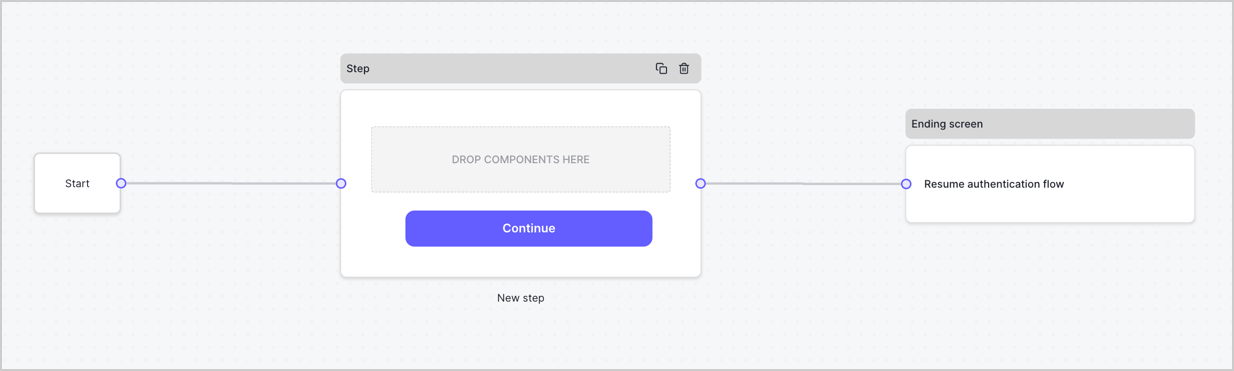
By default, a new form contains a Start node, a Step node, and an Ending screen node.
<Frame>
  <img src="https://mintcdn.com/docs-dev-docs-ia-custom-database-connections/68oR74T59vPkIFqf/docs/images/cdy7uua7fh8z/2TZ9jSjgEcARFpULI6hz4R/a4319a1bd482f2ee5cc23100fdb2f42c/New-form-Forms-for-action-use-case.png?fit=max&auto=format&n=68oR74T59vPkIFqf&q=85&s=17554d263ad82233d88b8d7a5c65e910" alt="Dashboard > Forms > Use Cases > Form" data-og-width="1234" width="1234" data-og-height="371" height="371" data-path="docs/images/cdy7uua7fh8z/2TZ9jSjgEcARFpULI6hz4R/a4319a1bd482f2ee5cc23100fdb2f42c/New-form-Forms-for-action-use-case.png" data-optimize="true" data-opv="3" srcset="https://mintcdn.com/docs-dev-docs-ia-custom-database-connections/68oR74T59vPkIFqf/docs/images/cdy7uua7fh8z/2TZ9jSjgEcARFpULI6hz4R/a4319a1bd482f2ee5cc23100fdb2f42c/New-form-Forms-for-action-use-case.png?w=280&fit=max&auto=format&n=68oR74T59vPkIFqf&q=85&s=e819eaf69269dfd4d16cad3da22510e0 280w, https://mintcdn.com/docs-dev-docs-ia-custom-database-connections/68oR74T59vPkIFqf/docs/images/cdy7uua7fh8z/2TZ9jSjgEcARFpULI6hz4R/a4319a1bd482f2ee5cc23100fdb2f42c/New-form-Forms-for-action-use-case.png?w=560&fit=max&auto=format&n=68oR74T59vPkIFqf&q=85&s=3468923eaf3ca5b68b874efa4007828f 560w, https://mintcdn.com/docs-dev-docs-ia-custom-database-connections/68oR74T59vPkIFqf/docs/images/cdy7uua7fh8z/2TZ9jSjgEcARFpULI6hz4R/a4319a1bd482f2ee5cc23100fdb2f42c/New-form-Forms-for-action-use-case.png?w=840&fit=max&auto=format&n=68oR74T59vPkIFqf&q=85&s=ee83132c99e649fb63a808ce8e09dce1 840w, https://mintcdn.com/docs-dev-docs-ia-custom-database-connections/68oR74T59vPkIFqf/docs/images/cdy7uua7fh8z/2TZ9jSjgEcARFpULI6hz4R/a4319a1bd482f2ee5cc23100fdb2f42c/New-form-Forms-for-action-use-case.png?w=1100&fit=max&auto=format&n=68oR74T59vPkIFqf&q=85&s=85cedfc4c7b51f95336fd7d829aa87e2 1100w, https://mintcdn.com/docs-dev-docs-ia-custom-database-connections/68oR74T59vPkIFqf/docs/images/cdy7uua7fh8z/2TZ9jSjgEcARFpULI6hz4R/a4319a1bd482f2ee5cc23100fdb2f42c/New-form-Forms-for-action-use-case.png?w=1650&fit=max&auto=format&n=68oR74T59vPkIFqf&q=85&s=a77fc46efb2951b4f5cfbb4106de185d 1650w, https://mintcdn.com/docs-dev-docs-ia-custom-database-connections/68oR74T59vPkIFqf/docs/images/cdy7uua7fh8z/2TZ9jSjgEcARFpULI6hz4R/a4319a1bd482f2ee5cc23100fdb2f42c/New-form-Forms-for-action-use-case.png?w=2500&fit=max&auto=format&n=68oR74T59vPkIFqf&q=85&s=89efd894118d52dbc81406ff87928b53 2500w" />
</Frame>

### Configure the Step node

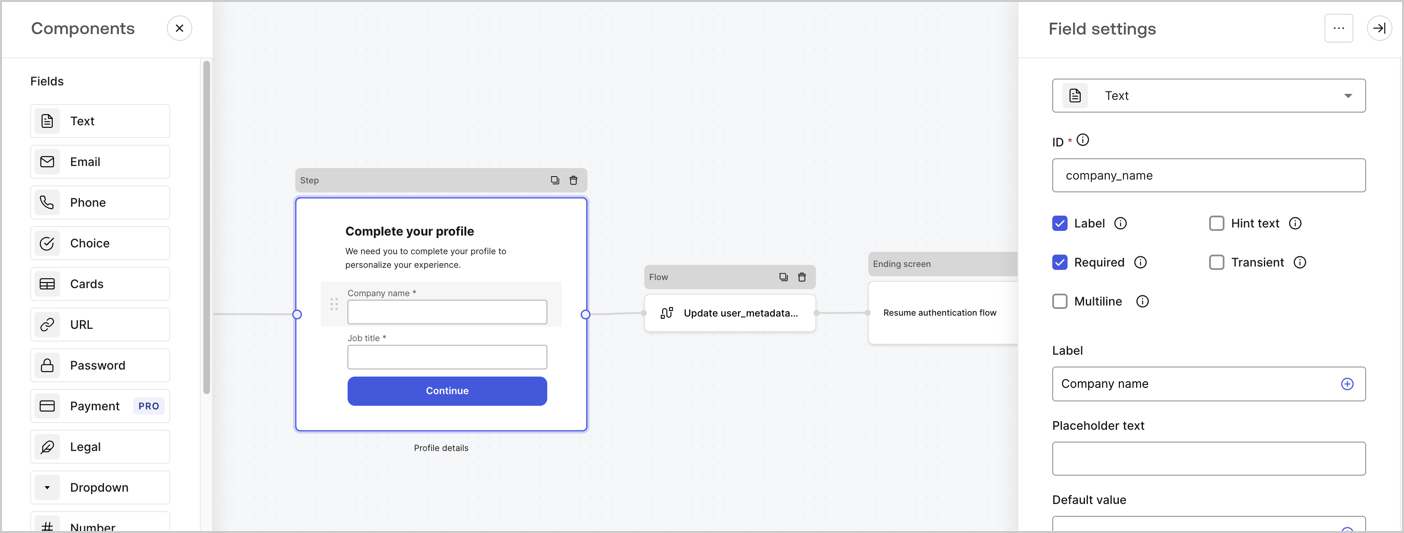
The Step node is the graphical interface visible to users. Add [Fields](/docs/customize/forms/nodes-and-components) to the Step node to collect the user's company name and job title values by following these steps:

1. Drag a **Rich text** field from the **Components menu** into the **Step** node.

   * **Rich text**: Enter a custom message.

     * **Example**: `Complete your profile! We need you to complete your profile to personalize your experience.`
   * Select **Save**.
2. Drag a **Text** field into the **Step** node.

   * **ID**: Enter `company_name`.
   * **Label**: Enable the checkbox.
   * **Label**: Enter `Company name`.
   * **Required**: Enable the checkbox.
   * Select **Save**.
3. Drag a **Text** field into the **Step** node.

   1. **ID**: Enter `job_title`.
   2. **Label**: Enter `Job title`.
   3. **Label**: Enable the checkbox.
   4. **Required**: Enable the checkbox.
   5. Select **Save**.
4. Select **Publish** to save.
<Frame>
  <img src="https://mintcdn.com/docs-dev-docs-ia-custom-database-connections/roCEYr1xi1eoO5-8/docs/images/cdy7uua7fh8z/6H1lRzwKyYioQyQJ9MtIoM/aa248e92fc028a68a5b92ff361a11644/progressive-profile-step.png?fit=max&auto=format&n=roCEYr1xi1eoO5-8&q=85&s=9341725369bd8930797310aa722973f5" alt="Dashboard > Actions > Forms > Form > Step node" data-og-width="1404" width="1404" data-og-height="533" height="533" data-path="docs/images/cdy7uua7fh8z/6H1lRzwKyYioQyQJ9MtIoM/aa248e92fc028a68a5b92ff361a11644/progressive-profile-step.png" data-optimize="true" data-opv="3" srcset="https://mintcdn.com/docs-dev-docs-ia-custom-database-connections/roCEYr1xi1eoO5-8/docs/images/cdy7uua7fh8z/6H1lRzwKyYioQyQJ9MtIoM/aa248e92fc028a68a5b92ff361a11644/progressive-profile-step.png?w=280&fit=max&auto=format&n=roCEYr1xi1eoO5-8&q=85&s=f3eae17135968e33f1184fa064381358 280w, https://mintcdn.com/docs-dev-docs-ia-custom-database-connections/roCEYr1xi1eoO5-8/docs/images/cdy7uua7fh8z/6H1lRzwKyYioQyQJ9MtIoM/aa248e92fc028a68a5b92ff361a11644/progressive-profile-step.png?w=560&fit=max&auto=format&n=roCEYr1xi1eoO5-8&q=85&s=f87490684c7f3ae6050b21e2bb8c2c0c 560w, https://mintcdn.com/docs-dev-docs-ia-custom-database-connections/roCEYr1xi1eoO5-8/docs/images/cdy7uua7fh8z/6H1lRzwKyYioQyQJ9MtIoM/aa248e92fc028a68a5b92ff361a11644/progressive-profile-step.png?w=840&fit=max&auto=format&n=roCEYr1xi1eoO5-8&q=85&s=96e494a26061017317f8c306013a9d97 840w, https://mintcdn.com/docs-dev-docs-ia-custom-database-connections/roCEYr1xi1eoO5-8/docs/images/cdy7uua7fh8z/6H1lRzwKyYioQyQJ9MtIoM/aa248e92fc028a68a5b92ff361a11644/progressive-profile-step.png?w=1100&fit=max&auto=format&n=roCEYr1xi1eoO5-8&q=85&s=92576ba31fbaadf470d862a093fe1348 1100w, https://mintcdn.com/docs-dev-docs-ia-custom-database-connections/roCEYr1xi1eoO5-8/docs/images/cdy7uua7fh8z/6H1lRzwKyYioQyQJ9MtIoM/aa248e92fc028a68a5b92ff361a11644/progressive-profile-step.png?w=1650&fit=max&auto=format&n=roCEYr1xi1eoO5-8&q=85&s=b2fac2ba3133044b6fe6d88df1bd8f38 1650w, https://mintcdn.com/docs-dev-docs-ia-custom-database-connections/roCEYr1xi1eoO5-8/docs/images/cdy7uua7fh8z/6H1lRzwKyYioQyQJ9MtIoM/aa248e92fc028a68a5b92ff361a11644/progressive-profile-step.png?w=2500&fit=max&auto=format&n=roCEYr1xi1eoO5-8&q=85&s=110d6caf21e635dc5cae6ce2fb096c2c 2500w" />
</Frame>

### Configure the flow node

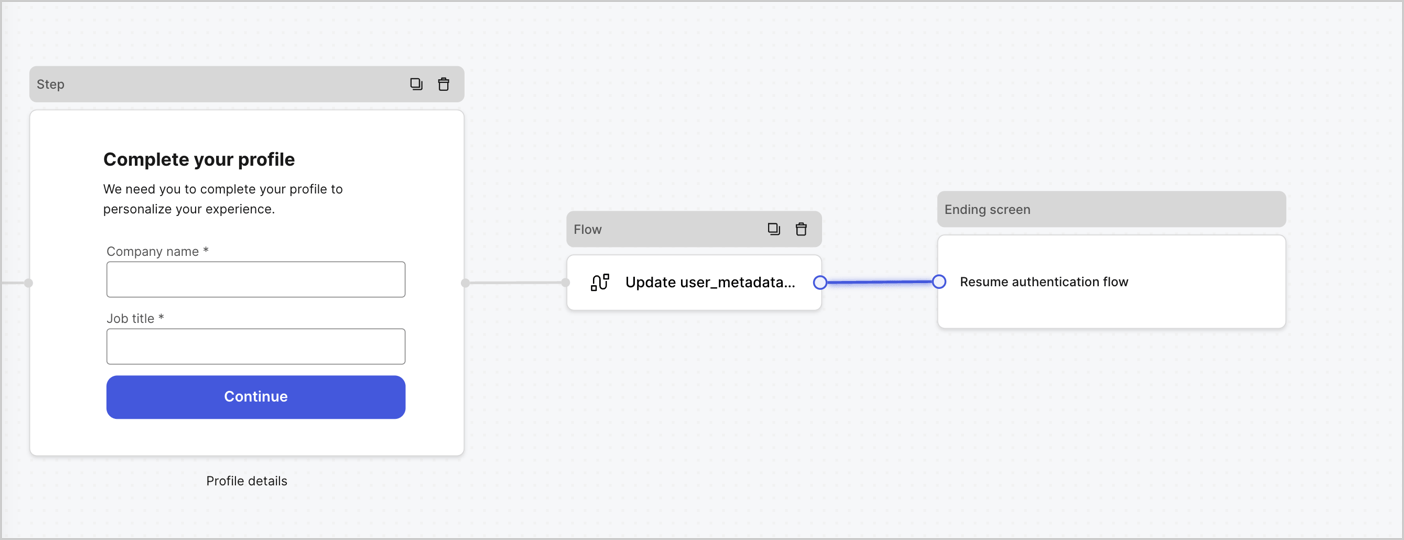
Add a **Flow** node after the **Step** node to update the `user_metadata` and resume the authentication flow by following these steps:

1. Select **Flow** from the bottom of the Form editor.
2. Remove the existing link between the **Step** and **Ending Screen** nodes.
3. Select the new **Flow** > **Click to add a flow** > **Create a new flow.**

   * Enter `Update user_metadata` in the **Name** field.
   * Select **Create**.
   * Select **Save**.
4. Link the **Flow** node to the **Step** and **Ending Screen** nodes as pictured below.
5. Select **Publish** to save.
<Frame>
  <img src="https://mintcdn.com/docs-dev-docs-ia-custom-database-connections/Hk2YjHVeMSf2YISQ/docs/images/cdy7uua7fh8z/5C91DaWn4LGtJT9BF87ssu/095171d0c452a287c44bfde12fd6d13f/link-nodes.png?fit=max&auto=format&n=Hk2YjHVeMSf2YISQ&q=85&s=fb136cdeb01c7fbb3c0f97314ac8bc21" alt="Dashboard > Actions > Forms > Form" data-og-width="1404" width="1404" data-og-height="540" height="540" data-path="docs/images/cdy7uua7fh8z/5C91DaWn4LGtJT9BF87ssu/095171d0c452a287c44bfde12fd6d13f/link-nodes.png" data-optimize="true" data-opv="3" srcset="https://mintcdn.com/docs-dev-docs-ia-custom-database-connections/Hk2YjHVeMSf2YISQ/docs/images/cdy7uua7fh8z/5C91DaWn4LGtJT9BF87ssu/095171d0c452a287c44bfde12fd6d13f/link-nodes.png?w=280&fit=max&auto=format&n=Hk2YjHVeMSf2YISQ&q=85&s=101951eefb46a07c7bcee57319304a2e 280w, https://mintcdn.com/docs-dev-docs-ia-custom-database-connections/Hk2YjHVeMSf2YISQ/docs/images/cdy7uua7fh8z/5C91DaWn4LGtJT9BF87ssu/095171d0c452a287c44bfde12fd6d13f/link-nodes.png?w=560&fit=max&auto=format&n=Hk2YjHVeMSf2YISQ&q=85&s=3b1d1153fb9d07c958257e1298f87faa 560w, https://mintcdn.com/docs-dev-docs-ia-custom-database-connections/Hk2YjHVeMSf2YISQ/docs/images/cdy7uua7fh8z/5C91DaWn4LGtJT9BF87ssu/095171d0c452a287c44bfde12fd6d13f/link-nodes.png?w=840&fit=max&auto=format&n=Hk2YjHVeMSf2YISQ&q=85&s=16ba33999aaed528f4fc0a78f77748a2 840w, https://mintcdn.com/docs-dev-docs-ia-custom-database-connections/Hk2YjHVeMSf2YISQ/docs/images/cdy7uua7fh8z/5C91DaWn4LGtJT9BF87ssu/095171d0c452a287c44bfde12fd6d13f/link-nodes.png?w=1100&fit=max&auto=format&n=Hk2YjHVeMSf2YISQ&q=85&s=b7970783ae09c49c5e51a8cf4ba12cad 1100w, https://mintcdn.com/docs-dev-docs-ia-custom-database-connections/Hk2YjHVeMSf2YISQ/docs/images/cdy7uua7fh8z/5C91DaWn4LGtJT9BF87ssu/095171d0c452a287c44bfde12fd6d13f/link-nodes.png?w=1650&fit=max&auto=format&n=Hk2YjHVeMSf2YISQ&q=85&s=6e73b2ce039adae71db35c84b0a8eadb 1650w, https://mintcdn.com/docs-dev-docs-ia-custom-database-connections/Hk2YjHVeMSf2YISQ/docs/images/cdy7uua7fh8z/5C91DaWn4LGtJT9BF87ssu/095171d0c452a287c44bfde12fd6d13f/link-nodes.png?w=2500&fit=max&auto=format&n=Hk2YjHVeMSf2YISQ&q=85&s=1930559f17261049cad73b82e80c1283 2500w" />
</Frame>

Add an Auth0 Update user action to the flow by following these steps:

1. Select the **Update user\_metadata** flow, then select the **Edit Flow** to open the Flow editor in a new tab.
2. Below the **Start** action, select the **+** icon to add an **Update user** action. Complete the fields below, then select **Save** to continue.

   * **Connection**: Select from the dropdown the Vault connection to your M2M application.

   * **User ID**: Enter `{{context.user.user_id}}`.

   * **Body**: Copy and paste the following code to update the user\_metadata with `job_title` and `company_name` properties.

     ```json lines theme={null}
     {
        "user_metadata": {
           "job_title": "{{fields.job_title}}",
           "company_name": "{{fields.company_name}}"
        }
     }
     ```

   * Select **Save**.
3. Select **Publish** to save.

<Frame>
  <img src="https://mintcdn.com/docs-dev-docs-ia-custom-database-connections/QxAQWJ3P1ym1xS1Q/docs/images/cdy7uua7fh8z/65Jx4W5oIZJyyvA8z4HqIx/0661b1a8ca6361c54fc4fef07ba59f0b/update-user.png?fit=max&auto=format&n=QxAQWJ3P1ym1xS1Q&q=85&s=96493010992bd90875bfd965ec0aa1b3" alt="Dashboard > Actions > Forms > Flows" data-og-width="1404" width="1404" data-og-height="244" height="244" data-path="docs/images/cdy7uua7fh8z/65Jx4W5oIZJyyvA8z4HqIx/0661b1a8ca6361c54fc4fef07ba59f0b/update-user.png" data-optimize="true" data-opv="3" srcset="https://mintcdn.com/docs-dev-docs-ia-custom-database-connections/QxAQWJ3P1ym1xS1Q/docs/images/cdy7uua7fh8z/65Jx4W5oIZJyyvA8z4HqIx/0661b1a8ca6361c54fc4fef07ba59f0b/update-user.png?w=280&fit=max&auto=format&n=QxAQWJ3P1ym1xS1Q&q=85&s=a91d7cf1fd81137017467591242b57f1 280w, https://mintcdn.com/docs-dev-docs-ia-custom-database-connections/QxAQWJ3P1ym1xS1Q/docs/images/cdy7uua7fh8z/65Jx4W5oIZJyyvA8z4HqIx/0661b1a8ca6361c54fc4fef07ba59f0b/update-user.png?w=560&fit=max&auto=format&n=QxAQWJ3P1ym1xS1Q&q=85&s=e07f97a9c4f49849a6c5775acc1ae908 560w, https://mintcdn.com/docs-dev-docs-ia-custom-database-connections/QxAQWJ3P1ym1xS1Q/docs/images/cdy7uua7fh8z/65Jx4W5oIZJyyvA8z4HqIx/0661b1a8ca6361c54fc4fef07ba59f0b/update-user.png?w=840&fit=max&auto=format&n=QxAQWJ3P1ym1xS1Q&q=85&s=85efe506e392905b5b0038c867900afa 840w, https://mintcdn.com/docs-dev-docs-ia-custom-database-connections/QxAQWJ3P1ym1xS1Q/docs/images/cdy7uua7fh8z/65Jx4W5oIZJyyvA8z4HqIx/0661b1a8ca6361c54fc4fef07ba59f0b/update-user.png?w=1100&fit=max&auto=format&n=QxAQWJ3P1ym1xS1Q&q=85&s=b40f133a62e5d6a8964e363d5a5f6c17 1100w, https://mintcdn.com/docs-dev-docs-ia-custom-database-connections/QxAQWJ3P1ym1xS1Q/docs/images/cdy7uua7fh8z/65Jx4W5oIZJyyvA8z4HqIx/0661b1a8ca6361c54fc4fef07ba59f0b/update-user.png?w=1650&fit=max&auto=format&n=QxAQWJ3P1ym1xS1Q&q=85&s=31efb9839544a72fdf30adc8cdcf8c14 1650w, https://mintcdn.com/docs-dev-docs-ia-custom-database-connections/QxAQWJ3P1ym1xS1Q/docs/images/cdy7uua7fh8z/65Jx4W5oIZJyyvA8z4HqIx/0661b1a8ca6361c54fc4fef07ba59f0b/update-user.png?w=2500&fit=max&auto=format&n=QxAQWJ3P1ym1xS1Q&q=85&s=9125289fd9457b1fd5c31020ed2ac4f1 2500w" />
</Frame>

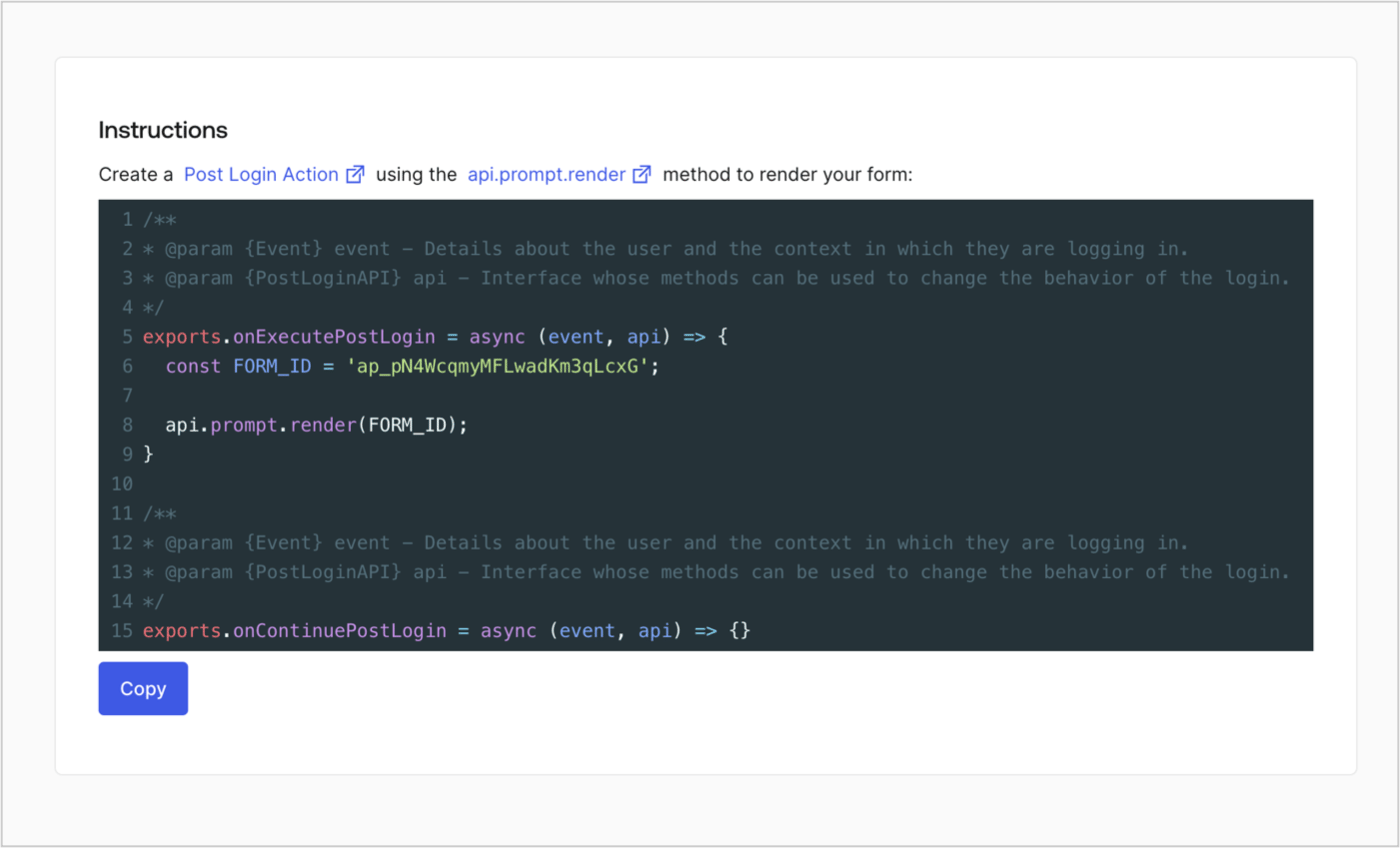
### Retrieve the form render code

Retrieve the form render code to visually render the form with a custom Post Login Action by following these steps:

* From the Form editor, select **`<> Render`**.
* Select **Copy**.
<Frame>
  <img src="https://mintcdn.com/docs-dev-docs-ia-custom-database-connections/5g8MfhZr__fvj1As/docs/images/cdy7uua7fh8z/2EIUzc539sq9lwoTKbjoJv/496a864c0fc44a782c9cadca119dbfb0/embed.png?fit=max&auto=format&n=5g8MfhZr__fvj1As&q=85&s=2342631e5119cf7574802deb0414bafc" alt="Dashboard > Actions > Forms > Form > Embed" data-og-width="1400" width="1400" data-og-height="848" height="848" data-path="docs/images/cdy7uua7fh8z/2EIUzc539sq9lwoTKbjoJv/496a864c0fc44a782c9cadca119dbfb0/embed.png" data-optimize="true" data-opv="3" srcset="https://mintcdn.com/docs-dev-docs-ia-custom-database-connections/5g8MfhZr__fvj1As/docs/images/cdy7uua7fh8z/2EIUzc539sq9lwoTKbjoJv/496a864c0fc44a782c9cadca119dbfb0/embed.png?w=280&fit=max&auto=format&n=5g8MfhZr__fvj1As&q=85&s=3ea50a9f56417bb32eab75218d41ebce 280w, https://mintcdn.com/docs-dev-docs-ia-custom-database-connections/5g8MfhZr__fvj1As/docs/images/cdy7uua7fh8z/2EIUzc539sq9lwoTKbjoJv/496a864c0fc44a782c9cadca119dbfb0/embed.png?w=560&fit=max&auto=format&n=5g8MfhZr__fvj1As&q=85&s=bbef5312d96a5d96e87905510efd2be6 560w, https://mintcdn.com/docs-dev-docs-ia-custom-database-connections/5g8MfhZr__fvj1As/docs/images/cdy7uua7fh8z/2EIUzc539sq9lwoTKbjoJv/496a864c0fc44a782c9cadca119dbfb0/embed.png?w=840&fit=max&auto=format&n=5g8MfhZr__fvj1As&q=85&s=05c7b1ea940203bbdd76fe2ef460e97f 840w, https://mintcdn.com/docs-dev-docs-ia-custom-database-connections/5g8MfhZr__fvj1As/docs/images/cdy7uua7fh8z/2EIUzc539sq9lwoTKbjoJv/496a864c0fc44a782c9cadca119dbfb0/embed.png?w=1100&fit=max&auto=format&n=5g8MfhZr__fvj1As&q=85&s=4ce619a9e346a46947774de0522c661b 1100w, https://mintcdn.com/docs-dev-docs-ia-custom-database-connections/5g8MfhZr__fvj1As/docs/images/cdy7uua7fh8z/2EIUzc539sq9lwoTKbjoJv/496a864c0fc44a782c9cadca119dbfb0/embed.png?w=1650&fit=max&auto=format&n=5g8MfhZr__fvj1As&q=85&s=416e0627a9c4db3c59e62b4a32bf53fe 1650w, https://mintcdn.com/docs-dev-docs-ia-custom-database-connections/5g8MfhZr__fvj1As/docs/images/cdy7uua7fh8z/2EIUzc539sq9lwoTKbjoJv/496a864c0fc44a782c9cadca119dbfb0/embed.png?w=2500&fit=max&auto=format&n=5g8MfhZr__fvj1As&q=85&s=f0e9ea86aaec02b42f41246b600d0b6b 2500w" />
</Frame>

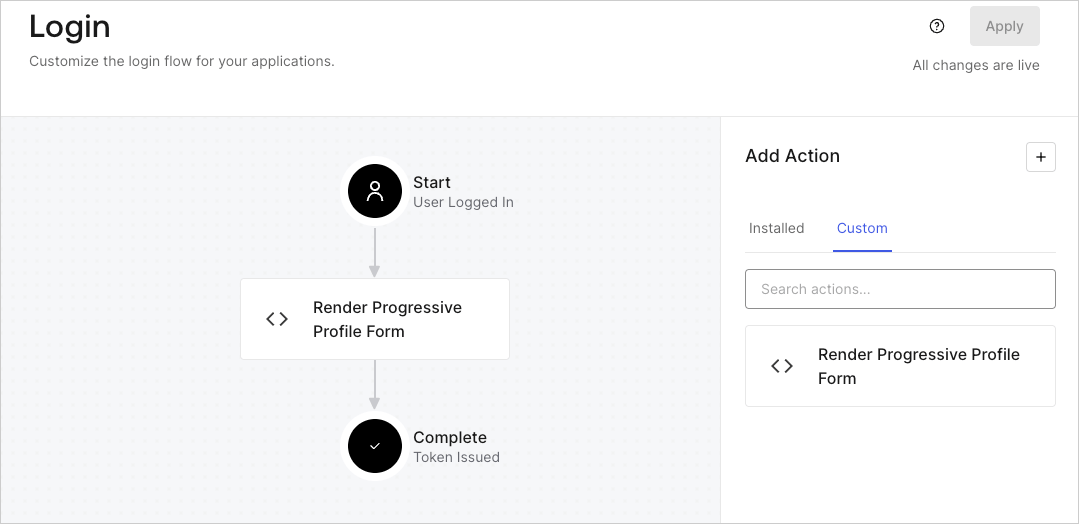
## Create a Post Login Action

Create a post-login Action to render your form by following these steps:

1. Navigate to **Auth0 Dashboard > Actions > Flows > Login.**
2. Select the **+** icon and select **Build from scratch**:

   * **Name**: Enter `Render Progressive Profile Form`.
   * **Trigger**: Select `Login / Post Login`.
   * **Runtime**: Select the recommended version.
3. Select **Create**.

To configure the post-login Action:

1. Delete the existing code from the Code editor.
2. Paste the form embed code into the Code editor.
3. Edit the code to define the conditional logic that will render the form.

   ```javascript lines theme={null}
   /**
   * @param {Event} event - Details about the user and the context in which they are logging in.
   * @param {PostLoginAPI} api - Interface whose methods can be used to change the behavior of the login.
   */
   exports.onExecutePostLogin = async (event, api) => {
     const FORM_ID = 'REPLACE_WITH_YOUR_FORM_ID';

     if (
       event.stats.logins_count > 2 &&
       !event.user.user_metadata.company_name &&
       !event.user.user_metadata.job_title
     ) {
       api.prompt.render(FORM_ID);
     }
   }

   exports.onContinuePostLogin = async (event, api) => { }
   ```

   <Callout icon="file-lines" color="#0EA5E9" iconType="regular">
     The example code above will render the form when a user has a login count > 2 and is missing the user metadata company\_name and job\_title properties.
   </Callout>
4. Select **Deploy.**
5. Drag and Drop the **Render Progressive Profile Form** Action to the **Login** flow.
   <Frame>
     <img src="https://mintcdn.com/docs-dev-docs-ia-custom-database-connections/z0D2mWph0fjFjhRP/docs/images/cdy7uua7fh8z/1QjjZdpTqTxx012UDN4xk9/99fba5ef4068a5688f1762eea7f42976/renderprogessiveprofile.png?fit=max&auto=format&n=z0D2mWph0fjFjhRP&q=85&s=aadc73d823189fd5408d988aad8442d8" alt="Dashboard > Forms > Use Cases Progressive Profile Login Action" data-og-width="1079" width="1079" data-og-height="524" height="524" data-path="docs/images/cdy7uua7fh8z/1QjjZdpTqTxx012UDN4xk9/99fba5ef4068a5688f1762eea7f42976/renderprogessiveprofile.png" data-optimize="true" data-opv="3" srcset="https://mintcdn.com/docs-dev-docs-ia-custom-database-connections/z0D2mWph0fjFjhRP/docs/images/cdy7uua7fh8z/1QjjZdpTqTxx012UDN4xk9/99fba5ef4068a5688f1762eea7f42976/renderprogessiveprofile.png?w=280&fit=max&auto=format&n=z0D2mWph0fjFjhRP&q=85&s=f4793c602c738af09d52634a82025328 280w, https://mintcdn.com/docs-dev-docs-ia-custom-database-connections/z0D2mWph0fjFjhRP/docs/images/cdy7uua7fh8z/1QjjZdpTqTxx012UDN4xk9/99fba5ef4068a5688f1762eea7f42976/renderprogessiveprofile.png?w=560&fit=max&auto=format&n=z0D2mWph0fjFjhRP&q=85&s=5059064dd2ead859751a4b2af24f5e25 560w, https://mintcdn.com/docs-dev-docs-ia-custom-database-connections/z0D2mWph0fjFjhRP/docs/images/cdy7uua7fh8z/1QjjZdpTqTxx012UDN4xk9/99fba5ef4068a5688f1762eea7f42976/renderprogessiveprofile.png?w=840&fit=max&auto=format&n=z0D2mWph0fjFjhRP&q=85&s=53b7809d21791a1b1ace3713fc39b456 840w, https://mintcdn.com/docs-dev-docs-ia-custom-database-connections/z0D2mWph0fjFjhRP/docs/images/cdy7uua7fh8z/1QjjZdpTqTxx012UDN4xk9/99fba5ef4068a5688f1762eea7f42976/renderprogessiveprofile.png?w=1100&fit=max&auto=format&n=z0D2mWph0fjFjhRP&q=85&s=8d50db991f373790f214f87bfd072c2d 1100w, https://mintcdn.com/docs-dev-docs-ia-custom-database-connections/z0D2mWph0fjFjhRP/docs/images/cdy7uua7fh8z/1QjjZdpTqTxx012UDN4xk9/99fba5ef4068a5688f1762eea7f42976/renderprogessiveprofile.png?w=1650&fit=max&auto=format&n=z0D2mWph0fjFjhRP&q=85&s=42c65d0deef00ed898a1c7768851eaec 1650w, https://mintcdn.com/docs-dev-docs-ia-custom-database-connections/z0D2mWph0fjFjhRP/docs/images/cdy7uua7fh8z/1QjjZdpTqTxx012UDN4xk9/99fba5ef4068a5688f1762eea7f42976/renderprogessiveprofile.png?w=2500&fit=max&auto=format&n=z0D2mWph0fjFjhRP&q=85&s=601e8fbcca56b6cceef50893b624006b 2500w" />
   </Frame>
6. Select **Apply**.

### Test implementation

Test the implementation by following these steps:

1. Log in with an existing user whose login count is greater than 2 and their `user_metadata` attributes `company_name` and `job_title` have no values.
2. The post-login action in the Login flow will render the form and prompt for the information.
3. Select **Auth0 Dashboard > User Management > Users,** locate the user and verify that the `user_metadata` attributes `company_name` and `job_title` contain information.
